
Breeze: How to Use
Breeze: How to Access and Use
The Unitarian Universalist Westside Congregation uses the Breeze software program as its primary tool for communication, events management, financial administration, and fundraising.
Each member and friend of UUWC is urged to create an account and access Breeze to keep track of the church’s activities, as well as their personal connections with the church.
Below please find some instructions either using a computer or your iPhone. to help you get started with Breeze
Breeze web site – How To
V1.1 5/13/2025
Breeze provides a full set of functions as a Web application.
The web application works best on the Chrome browser.
- Open the Chrome browser.
- Type https://uuwc.breezechms.com/login in the address bar and click [Enter].
- You will be requested to sign in.
Once you sign in, you can
- View and configure your Dashboard
- View upcoming events
- View profiles of UUWC parties.
- Give Now to the congregation
- View and update your Profile and Settings information.
This document provides details for these simple steps.
Much more functionality is included in the web application. This included information is enough to get you started. We will add more as it is requested.
Sign In
| Enter your Breeze login credentials as provided by church personnel and click [Sign In]. | 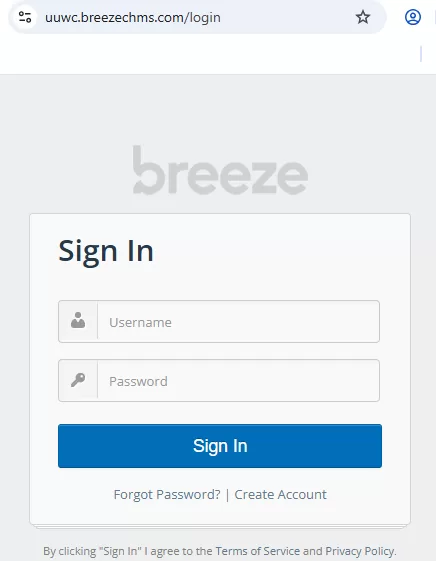 |
View and Configure your Dashboard
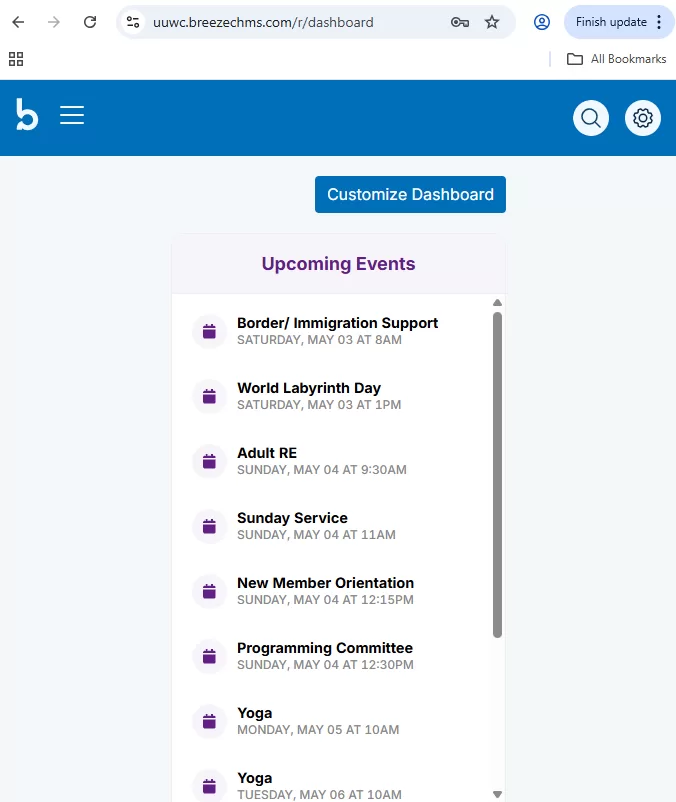
| The Dashboard is the default page.
The example is for a Dashboard where Upcoming Events is the 1st selected display option. |
 |
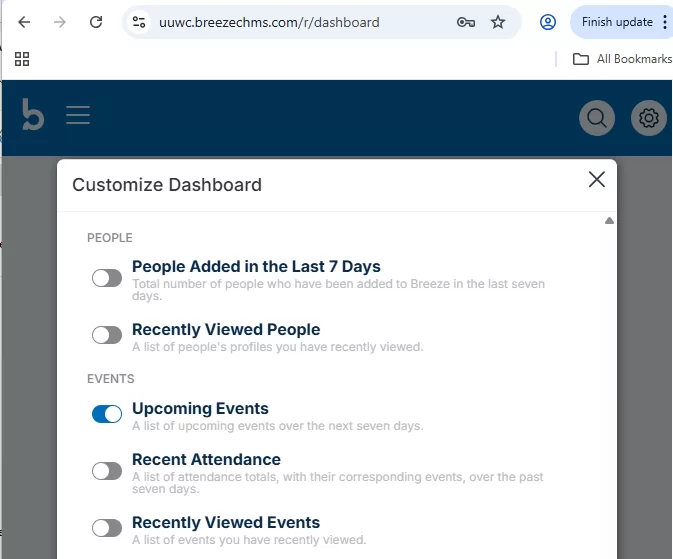
| You can control the displayed contents of the Dashboard.
Click the [Customize Dashboard] button located at the top of the Dashboard page. The Customize Dashboard options are displayed. Select the options you want displayed and click the [Save] button at the bottom of the page. NOTE: The easiest path to viewing upcoming events is to make sure you have selected the upcoming Events option on the Dashboard. |
 |
View upcoming events
| If you selected the Upcoming Events option on the Dashboard, the listing will be displayed on the Dashboard after you login. | 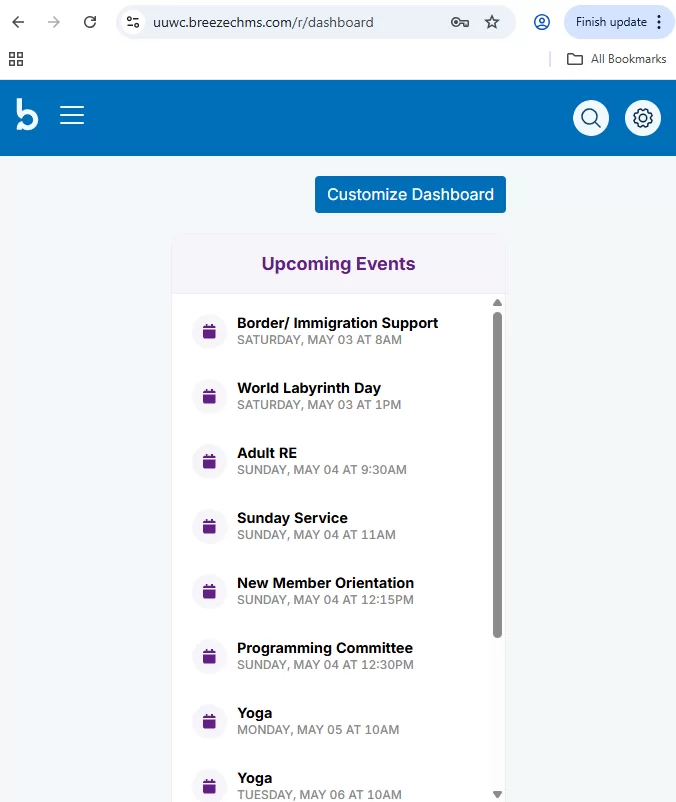 |
| Click on the event of interest in the listing to see details. |
View profiles of UUWC people
| Click the People menu option listed at the top of any page.
NOTE: The menu does not display in the other screenshots. I did not include it in order to save space. |
 |
| A listing will display all active UUWC people. You can scroll or search for a person by name.Clicking on a person will display a read-only view of their data. |
A picture of the listing is not displayed for privacy purposes. |
Give Now to the congregation
| Click the Give Now menu option listed at the top of any page. |  |
|

|
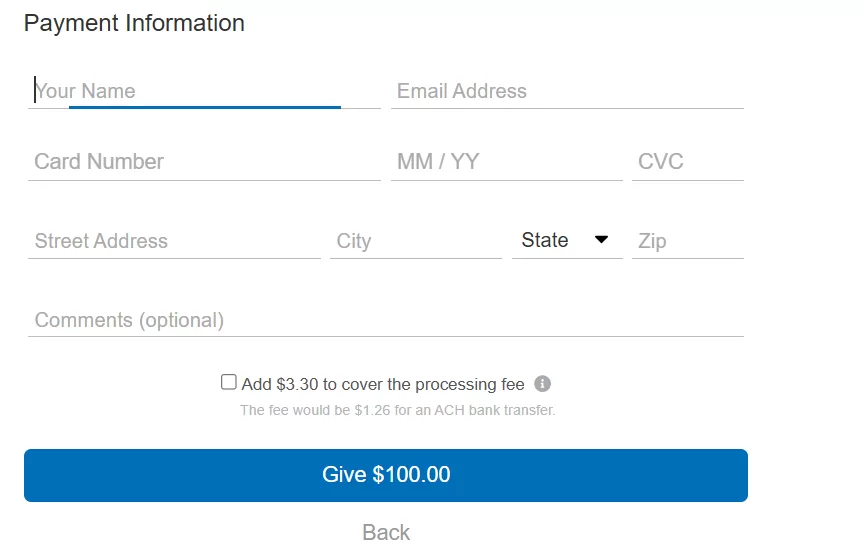
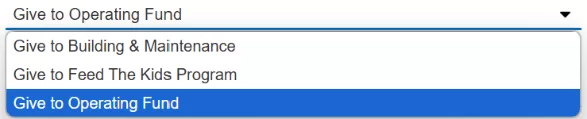
| The appropriate Credit Card vs Bank account payment information page will be displayed.
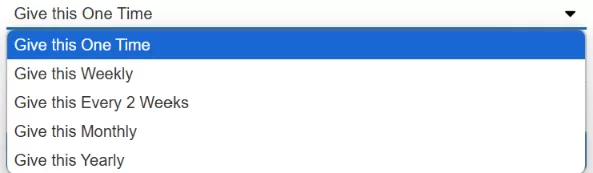
The example displayed is for the Credit Card page. The amount displayed is what was entered on the 1st page. NOTE: The processing fees vary by payment source and frequency. It is less for Bank sourcing and is less for recurring donations. It is your decision if you wish to help the congregation cover this fee by checking the box. |
 |

View and update your Profile and Settings information
In order to update your Profile and Settings information, you need to
 Click on the GEAR icon listed on the menu at the top of any page. Click on the GEAR icon listed on the menu at the top of any page. |
 |
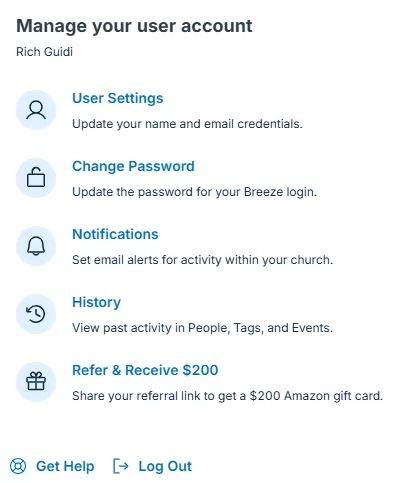
| The following pop-up page will be displayed.
Your settings are located in the ‘Manage your user account’ section. The following links are most helpful:
|
 |
________________
Breeze iPhone app – How To
V1.1 5/13/2025
Breeze is an iPhone app which provides the same set of functions as the Web application.
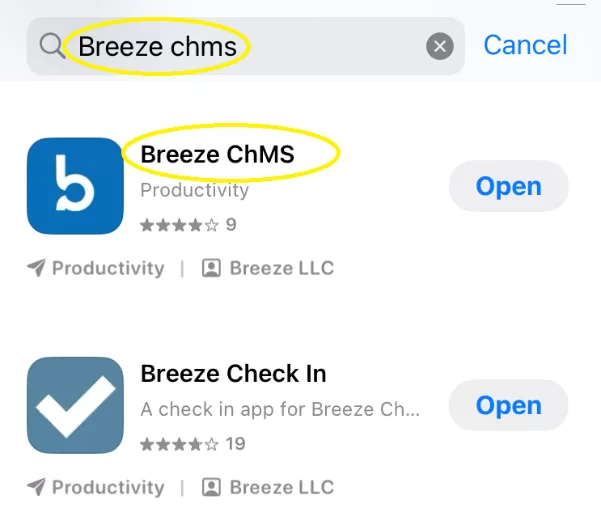
The app is available from the App Store for Apple phones.
Once you download and install it on your phone, you can
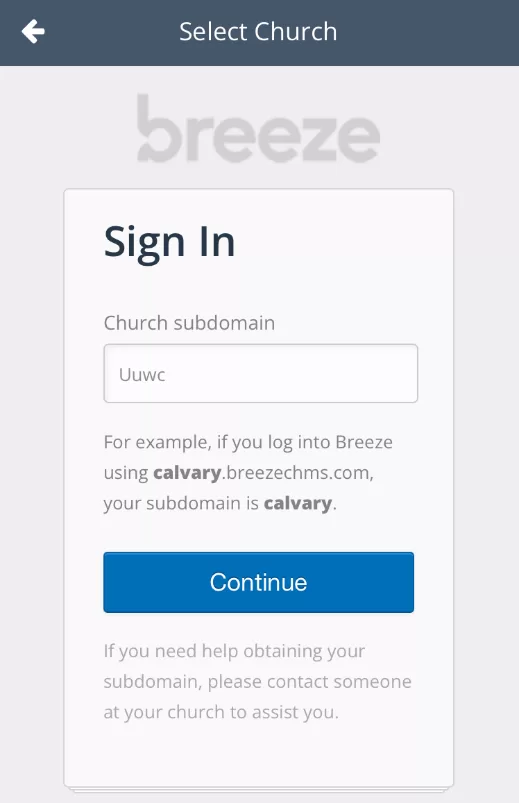
- Identify your church and login
- View and configure your Dashboard
- View upcoming events
- View profiles of UUWC parties.
- View and update your Profile and Settings information.
This document provides details for these simple steps.
Much more functionality is included in the app. This included information is enough to get you started. We will add more as it is requested.
Install the Breeze iPhone App
The app is available from the App Store for Apple phones.
|
 |
Login
First provide UUWC’s subdomain:
|
 |
| Next enter your Breeze login credentials as provided by church personnel and click [Sign In]. | 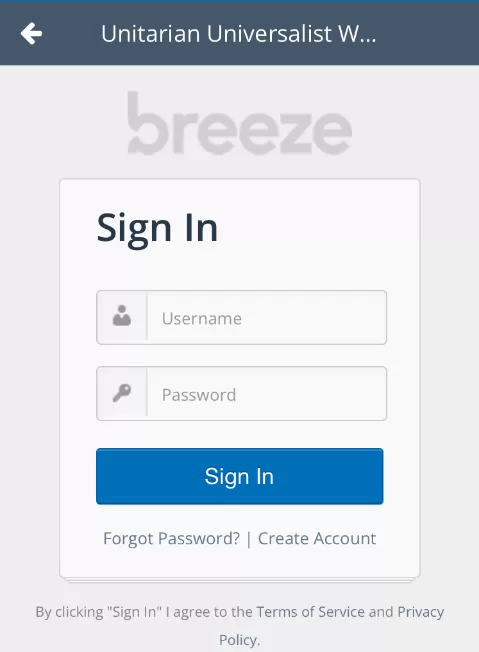 |
View and Configure your Dashboard
| Once you login, the Dashboard is the default page.
The example is for a Dashboard where Upcoming Events is the 1st selected display option. |
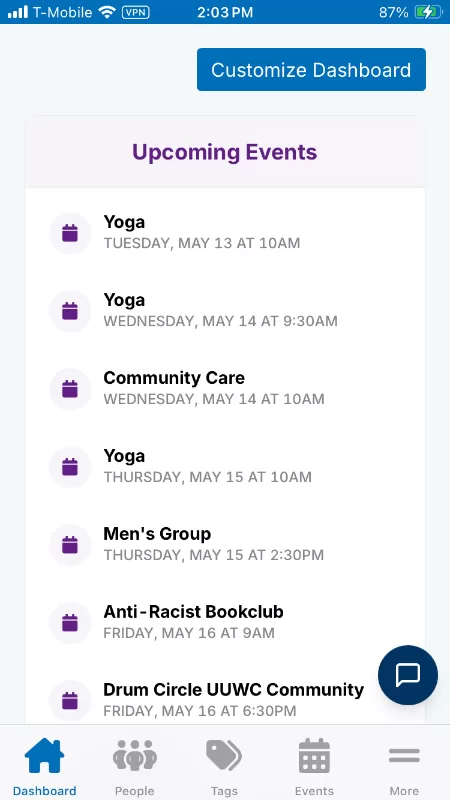 |
FYI: Notice the menu options at the bottom of every page:
- Dashboard
- People
- Tags
- Events
- More
More on those later!
| You can control the displayed contents of the Dashboard.
Click the CUSTOMIZE DASHBOARD button located at the top of the Dashboard page. The Customize Dashboard options are displayed. |
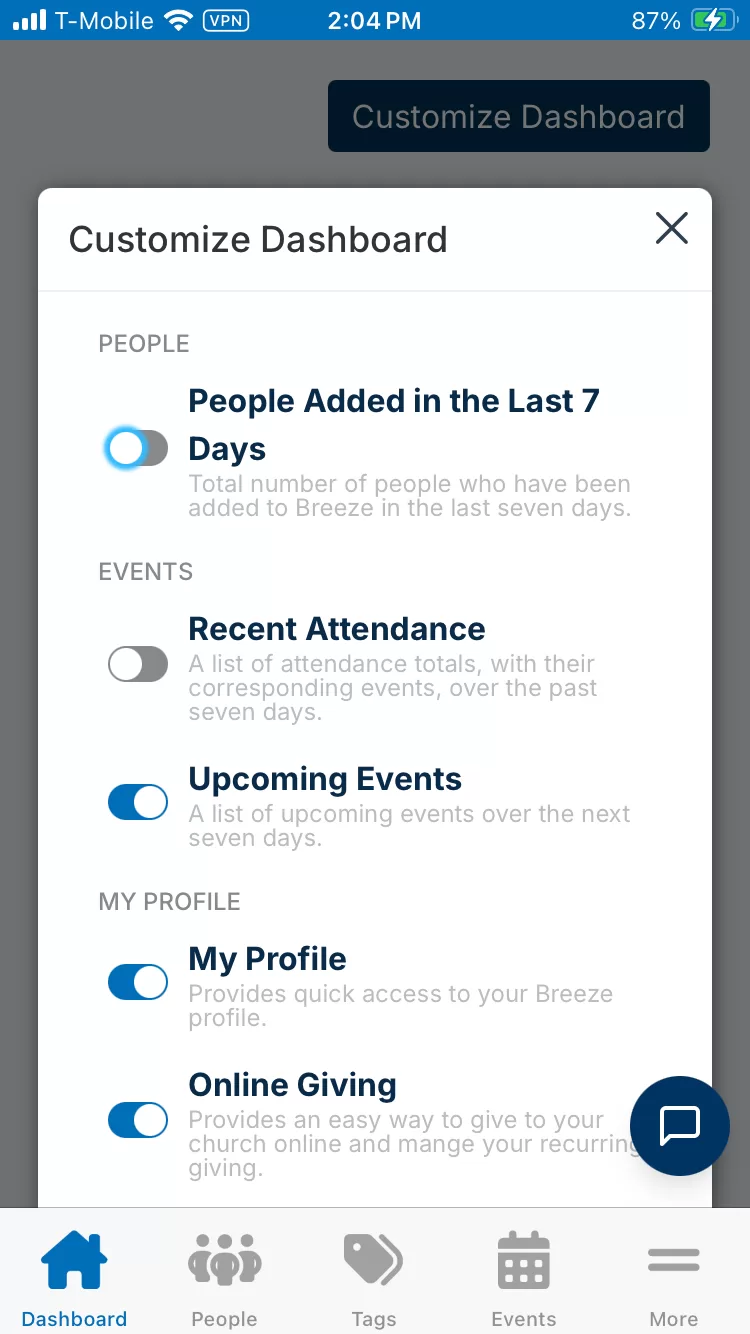 |
| Select the options you want displayed and click the [Save] button at the bottom of the page.
NOTE: The easiest path to viewing upcoming events is to make sure you have selected the upcoming Events option on the Dashboard. |
 |
View upcoming events
| If you selected the Upcoming Events option on the Dashboard, the listing will be displayed on the Dashboard after you login. | 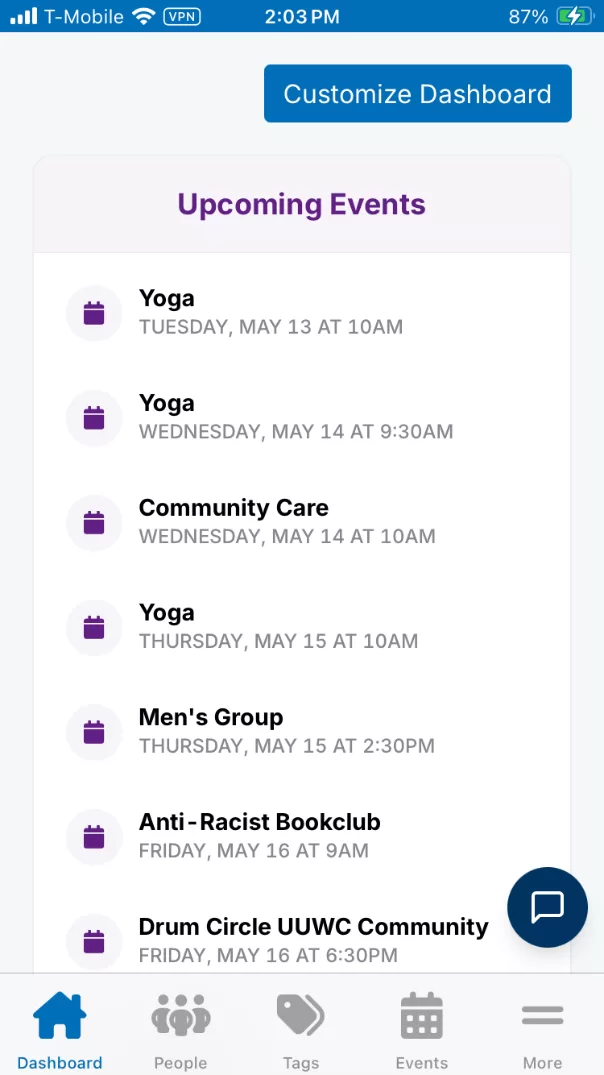 |
| Click on the event of interest in the listing to see details. |
View profiles of UUWC people
| Click the People option listed at the bottom of any page. |  |
| A listing will display all active UUWC people. You can scroll or search for a person by name.Clicking on a person will display a read-only view of their data. |
A picture of the listing is not displayed for privacy purposes. |
View and update your Profile and Settings information
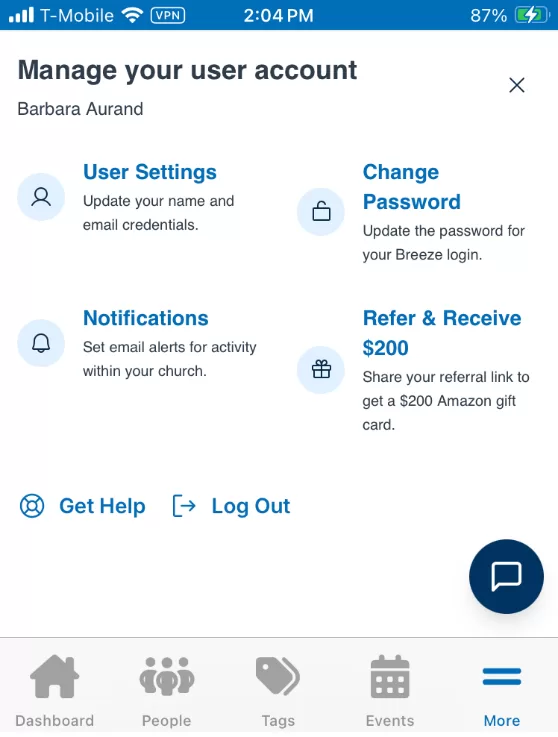
In order to update your Profile and Settings information, you need to
|
 |
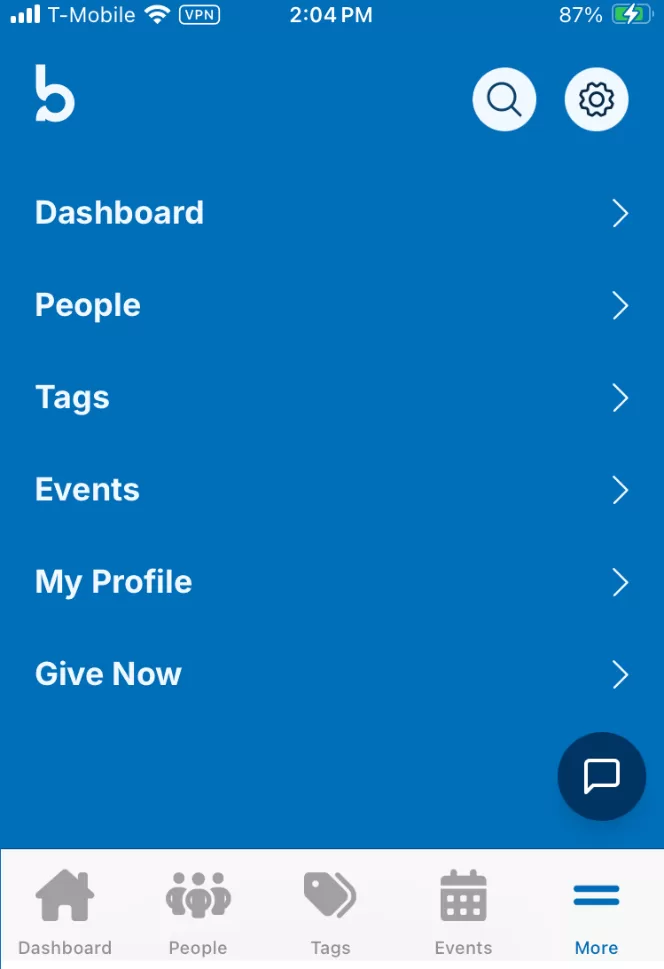
| The ’More’ page will be displayed.
NOTE: The ‘Give Now’ link is to an Online Giving page. However, it just links to the Breeze web application. Refer to the Breeze web application ‘How To’ document for details. |
 |
|
 |
|
 |
